
April 22, 2024
Office
Soda PDF Review 2026: Features, Limitations & Alternatives
Soda PDF has been around for well over a decade — this page originally covered version 8 back in 2016 — and it remains one of the established names in PDF software. But the product, its pricing, and its competition have all changed substantially. Here’s an up-to-date look at what Soda PDF offers in 2026, what it does well, its honest limitations, and the alternatives worth comparing before you buy.
What Soda PDF Is Now
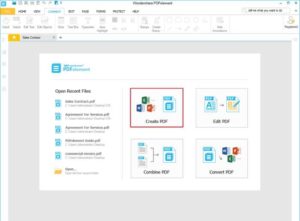
Soda PDF is a full PDF suite available as both a desktop application (Windows) and an online/web version that works in any browser. It covers the complete PDF workflow: creating PDFs from Word, Excel, PowerPoint, and images; converting PDFs back to editable formats; editing text and pages directly; merging and splitting documents; compressing files; adding e-signatures; and securing documents with passwords and permissions. It’s sold via subscription tiers, with occasional lifetime-license promotions, and a free online toolset for basic tasks.
What It Does Well
- Conversion quality — its core strength since the early versions: PDF to Word/Excel/JPG and back, with good layout preservation for typical business documents.
- Complete feature set — editing, OCR (recognizing text in scans), forms, e-sign, batch processing, and security in one suite, so most users won’t need a second tool.
- Web version — the browser-based edition handles quick tasks from any device without installing anything, which is genuinely convenient.
- Cheaper than Adobe — for most business use it undercuts Adobe Acrobat’s subscription while covering the features most people actually use.
Honest Limitations
- Upselling and pricing complexity — features are spread across tiers, and the checkout is known for add-on offers. Read what your tier includes carefully.
- Windows-centric desktop app — Mac users are steered to the web version, which is capable but not identical.
- Not the best at any single thing — specialists beat it in places: Adobe for enterprise standards and advanced pre-press, and free tools for basic tasks.
Alternatives to Compare in 2026
- Adobe Acrobat — the industry standard; most capable, most expensive. Worth it for heavy, professional PDF work.
- PDF-XChange Editor, Foxit — strong Windows editors with competitive pricing; Foxit is a popular business alternative.
- Free tools — for occasional tasks, free options cover a lot: LibreOffice exports PDFs, browsers fill forms, and web tools convert and merge. Our roundup of the best free PDF editing sites covers when you don’t need to pay at all, and our list of free PDF to Word/Excel converters handles one-off conversions.
Who Should Buy Soda PDF?
Soda PDF fits users and small businesses who work with PDFs regularly enough to want a full suite — converting, editing, OCR, signing — without paying Adobe prices. If your PDF needs are occasional (a conversion here, a merge there), free tools likely cover you. If you’re an enterprise with compliance and advanced workflow needs, Adobe remains the safer standard. In between — the freelancer, office, or small business handling documents daily — is exactly where Soda PDF makes sense, provided you check the tier features and watch the checkout add-ons.
FAQ
Is Soda PDF still good in 2026? Yes — it’s a capable full PDF suite (convert, edit, OCR, e-sign, secure) at a lower price than Adobe. Its conversion quality remains a strength; just review the subscription tiers carefully.
Is Soda PDF free? It offers free online tools for basic tasks, but the full desktop suite and advanced features require a paid subscription (with occasional lifetime-license deals).
Soda PDF vs Adobe Acrobat — which should I choose? Adobe is more capable and the enterprise standard, but costs more. Soda PDF covers the features most individuals and small businesses actually use at a lower price. Heavy professional users: Adobe; regular business use: Soda PDF is a fair value.
Does Soda PDF work on Mac? The desktop app is Windows-centric; Mac users are directed to the browser-based web version, which handles most tasks but isn’t identical to the desktop suite.
Do I even need paid PDF software? Only if you work with PDFs regularly. For occasional converting, merging, or form-filling, free online tools and built-in OS features cover most needs.

Related Posts

Search Here
Bilal Ahmad
Founder & Editor, TechMaish
Bilal Ahmad is the founder and editor of TechMaish, writing about consumer technology since 2008. For over 18 years he has covered streaming and downloads, games, social media platforms, iPhone and Android, Windows fixes and everyday software, testing tools hands-on and sharing what actually works. He is based in Peshawar, Pakistan.
About MeAll My ArticlesTwitterFacebookLinkedInInstagramPinterest
1 comment
Shakir Hassan
Hi Bilal,
Thanks for writing an amazing content, I was waiting desperately for this post*
The tips you’re just mentioned here are simple to follow and straight to the point. I’ll apply all of these if I’ll need!
Thanks