
December 28, 2011
Recovery
Outlook Profile Not Loading? How to Access your OST Data
Several users have reported on different tech forums that they have encountered a problem where their Outlook hangs at “Loading Profile” when they try to open their email client. This issue occurs when the application gets stuck while trying to load the user profile. It prevents you from opening the application and accessing your mailbox data. There are several factors that can cause this issue. In this guide, we will explain the reasons behind the Outlook Profile Not Loading issue and how to fix this issue and access your OST file data.
Common Reasons for Outlook Profile Not Loading Issue
There are several reasons why this issue occurs. Some of the most common causes are listed below:
Corrupted Outlook Profile: If your Outlook profile is corrupted, it may fail to upload. This can happen due to improper application or system shutdown, software conflicts, and other reasons.
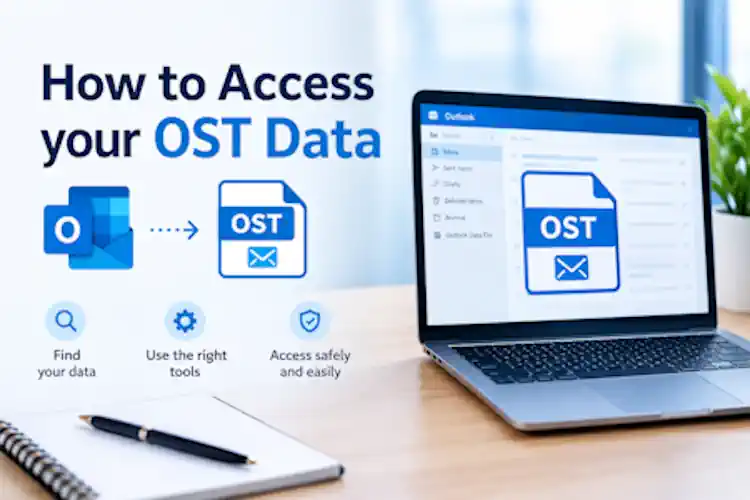
Issues with Outlook Data File (.ost): If the OST (Offline Storage Table) file is damaged or has consistency issues, it can also cause Outlook profile not loading issue.
Faulty Add-ins: If an add-in is incompatible or malfunctioning, it can interfere with Outlook functionality, preventing the profile from loading.
Antivirus Program Conflicts: Antivirus software can block Outlook’s access to necessary files, leading to loading issues.
How to Fix “Loading Profile” Issue in Outlook?
Restarting Outlook can resolve temporary glitches or issues that might be preventing the application from loading the profile. So, you can close Outlook completely and then open it again. If it is still not loading, then follow the below-mentioned solutions to fix the “Loading Profile” issue in Outlook and access your OST data.
2. Check and End Background Processes
Sometimes, Outlook processes continue running in the background even after you close the application. This can cause issues when you attempt to start the application again. To resolve this, check whether any Outlook processes are still running in the background and end them. Follow these steps:
- Press Ctrl + Shift + Esc to open the Task Manager.
- Navigate to the Processes tab.
- Locate the Outlook.exe process in the list.
- Right-click on Outlook.exe and select End Task.
3. Disable Faulty Add-ins
Third-party add-ins can enhance the functionality of Outlook. However, they sometimes interfere with the application’s functionality. To check if the add-in is causing this issue, you can start the application in Safe Mode by pressing Windows + R, typing outlook.exe /safe, and pressing Enter.
If Outlook works normally in this mode, it means that add-ins are causing the issue. In such a case, you can check and disable the faulty add-ins. Follow the steps below to do so:
- Go to File > Options > Add-ins.
- Select COM Add-ins next to Manage. Click Go.
- Clear the checkboxes for the enabled add-ins.
- Restart Outlook.
- Re-enable the add-ins one at a time to identify the problematic one.
4. Create a New Outlook Profile
An Outlook profile contains account settings, configuration, and other information. A damaged or corrupted profile may prevent your email client from loading it properly. In such a case, you can create a new Outlook Profile. To do this, follow the steps below:
- Close Outlook.
- Open Control Panel and select Mail (Microsoft Outlook).
- Select Show Profiles.
- Select Add and enter a name for the new profile.
- Follow the prompts to add and configure your Microsoft 365 or Exchange account.
- Select Always use this profile option and choose the new profile.
- Open Outlook and check whether the Loading Profile issue is resolved.
5. Rebuild the OST File
If your OST file gets damaged or corrupted, Outlook may get stuck on the “Loading Profile” screen. In this case, you can recreate the OST file. For this, rename or move the corrupted OST file to another location to create its backup. After this, start the Outlook. It will automatically create a new OST file at the default location and synchronize all your mailbox data from the server. Once you have recreated the OST file, check that all your mailbox data is synchronized.
What if the Above Methods fail to Resolve the Issue?
If none of the methods mentioned above works, the only way to access your OST data is by converting it into PST format. For this, you can use an advanced OST to PST converter. Stellar’s Online OST Converter is a web-based service that allows you to convert orphaned or inaccessible OST files to PST format without installing any software. It can convert OST files of up to 500 MB for free. You can go for its premium version to convert OST file of up to 5 GB.
If you want to convert OST file without any size limitations, you can use Stellar Converter for OST – a desktop-based OST to PST converter software.
After the conversion, you can import the converted PST into any Outlook profile and access your OST data.
Conclusion
The “Loading Profile” problem in Outlook can be caused by several factors. In this guide, we have explained the methods to resolve this issue. If the Outlook profile still fails to load, then you can access the OST file data by converting it into PST format. If your OST file is small (up to 500 MB), then you can use Stellar’s Online OST Converter to convert it into PST format for free. It doesn’t require Outlook or any other additional software to be installed.
Frequently Asked Questions
Why does Outlook get stuck on “Loading Profile”?
> This error triggers when the email client is unable to load your user data properly.
> Common culprits include a corrupted Outlook profile caused by improper shutdowns, consistency issues within the OST file, incompatible third-party add-ins, or restrictive antivirus software.
How can I stop background Outlook processes?
> Press Ctrl + Shift + Esc to open the Task Manager.
> Go to the Processes tab, find the Outlook.exe application, right-click it, and choose End Task.
How do I test if an add-in is causing the loading error?
> Press Windows + R, type outlook.exe /safe, and hit Enter to start the application in Safe Mode.
> If Outlook loads correctly, an add-in is likely the problem.
> You can then navigate to File > Options > Add-ins, select COM Add-ins, and disable them to isolate the faulty extension.
What is the process for rebuilding a damaged OST file?
> Make sure Outlook is closed, then rename or move the problematic OST file to a different folder to serve as a backup.
> Upon restarting Outlook, the application will automatically create a fresh OST file in the default location and resynchronize your mailbox data directly from the server.
How do I access my data if none of these fixes work?
> You will need to convert your orphaned OST file into a PST format to restore access to your emails.
> Stellar’s Online OST Converter can process files up to 500 MB for free without requiring a local installation.
> For files exceeding this limit, desktop software like Stellar Converter for OST is required to bypass size restrictions.
> Once converted, the resulting PST file can be imported into any working Outlook profile.
 November 28, 2017


Bilal Ahmad
Founder & Editor, TechMaish
Bilal Ahmad is the founder and editor of TechMaish, writing about consumer technology since 2008. For over 18 years he has covered streaming and downloads, games, social media platforms, iPhone and Android, Windows fixes and everyday software, testing tools hands-on and sharing what actually works. He is based in Peshawar, Pakistan.
About MeAll My ArticlesTwitterFacebookLinkedInInstagramPinterest