
July 26, 2011
How to Export Gmail Contacts to a CSV File (2026 Guide)
The most confusing part of this task is not the export itself — it is realising that Gmail does not actually have contacts. Your contacts live in a separate Google product called Google Contacts, accessed at contacts.google.com. The old in-Gmail contacts interface that many guides still reference was retired in 2023, so if you are seeing instructions that mention a contacts panel inside Gmail itself, they are outdated. This guide covers the current process, the formats that actually matter, and a distinction most guides skip entirely that determines whether your export is complete or missing most of your contacts.
Saved Contacts vs Other Contacts — The Distinction That Trips Most People Up
Google actually maintains two separate lists of people you have interacted with, and exporting only one is the most common reason an export comes back incomplete. Saved Contacts are people you deliberately added to your address book. Other Contacts is a much larger, auto-generated list Google builds from every email address you have ever replied to or forwarded a message to, whether or not you saved them as a contact.
If you are backing up your real address book, Saved Contacts is what you want. If you are switching email platforms and want to preserve your full sending and reply history — useful for autocomplete continuity on a new platform — you need to export Other Contacts separately, since the standard export only covers Saved Contacts by default.
How to View and Export Your Gmail Contacts
Step 1: Open Google Contacts
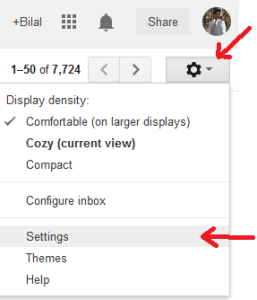
Go directly to contacts.google.com while signed in to your Gmail account. Alternatively, from Gmail, click the nine-dot grid icon in the top right corner and select Contacts from the apps list.
Step 2: Select What You Want to Export
In the left sidebar, click Contacts to see your Saved Contacts, or Other Contacts for the auto-generated list. Click Select all to export everything in that list, or hover over individual profile photos to check specific contacts if you only need some of them. If your contacts are organised into labels, you can select a specific label instead of exporting your full list.
Step 3: Export and Choose a Format
Click Export in the left sidebar (or the three-dot menu at the top of the list, depending on your screen size). A dialog opens letting you choose between three formats:
- Google CSV — preserves Unicode characters correctly, including non-Latin names and accented characters. Use this if you are re-importing into another Google account or opening the file in Google Sheets.
- Outlook CSV — converts characters to a format Outlook expects, since Outlook does not handle Unicode the same way. Use this specifically for importing into Microsoft Outlook or Microsoft 365. Note that Outlook caps CSV imports at 2,000 contacts per file, so split larger exports if needed.
- vCard (.vcf) — the standard format for Apple devices and most CRM systems. Use this for importing into iPhone, iPad, Mac Contacts, or most third-party CRM platforms.
Click Export to download the file, which is free with no limit on contact count for standard accounts — Google supports exporting up to roughly 25,000 contacts in a single run, more than enough for almost any personal or small business account.
Cleaning Up Duplicates Before You Export
Google Contacts includes a built-in Merge & fix tool that detects likely duplicate entries — the same person saved twice with slightly different details, which happens often when contacts get added both manually and automatically over the years. Running this before exporting saves you from cleaning up the same duplicates later in Excel or your destination platform. The option appears in the left sidebar as a numbered suggestion once Google has identified duplicates in your list.
Frequently Asked Questions
Where did the old Gmail Contacts menu go?
Google retired the contacts panel that used to live inside the Gmail interface in 2023. Contacts now live entirely in the separate Google Contacts product at contacts.google.com, accessible from Gmail through the nine-dot apps grid in the top right corner.
Which CSV format should I choose: Google CSV or Outlook CSV?
Use Google CSV if you are moving contacts between Google accounts or opening the file in Google Sheets, since it preserves international characters correctly. Use Outlook CSV specifically when importing into Microsoft Outlook or Microsoft 365, since Outlook does not support the Unicode encoding Google CSV uses by default.
Why is my exported contact list smaller than expected?
The default export covers Saved Contacts only, not Other Contacts — the much larger auto-generated list Google builds from every email address you have replied to or forwarded to. If you expected a complete history of everyone you have emailed, you need to export Other Contacts separately from the left sidebar in Google Contacts.
Is there a limit to how many contacts I can export at once?
Google does not publish a hard limit, but standard accounts comfortably support exporting up to roughly 25,000 contacts in a single export. If your list is unusually large and you experience issues, exporting by label in smaller batches keeps file sizes manageable and avoids potential timeout issues.

 August 13, 2010
Related Posts
Search Here
1 comment
Ravi Singh
Hey BILAL ,
Your tips is very nice to getting more email id. From a log time, I am looking such article. Finally you have shared. I have learned to getting more contact. Thanks for these tips!