
October 3, 2010
Windows
Best Windows Boot Analyzer Tools in 2026 (WinBootInfo & Alternatives)
As you all know that for windows XP there is a software called “Boot Log XP” which is use to show how long your windows XP takes time to boot, running processes, loaded DLLs etc. Similarly for Windwos 7 and Vista there is a software called WinBootInfo which also perform the same functions as Boot Log XP does.
WinBootInfo is a advance boot analyzer for both windows 7 and Vista. That logs applications and drivers, measure windows boot time, records CPU and so on. It also tells you that which program is running when you boot your windows and slowing your boot timing.
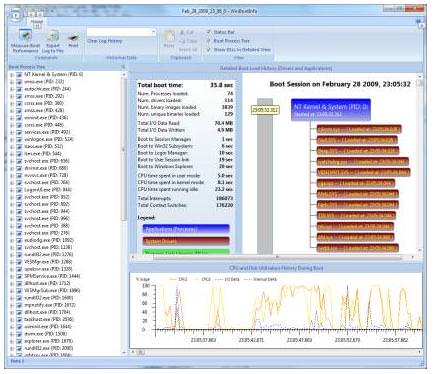
WinBootInfo Features
It shows history of previous boots and current boots timing to compare the result. It performs text Log generation and printing of report. It tracks I/O activities during windows 7 and vista boot timing. It allows you Context switch tracking and system interrupt during windows booting. Every time you load your windows it store all the processes, display a detail time map and different times of logged.Download WinBootInfo- Windows Boot Analyzer
For the first time when you will run this software, it will show you a message that “No Boot Analysis Data Device Recorded Yet”. Just click on “Yes” and it will start recording all the information. As you can see in the above screen shot. You can easily kill a process, stop a software or application etc from the winbootinfo menu. It provides you a lot of useful and helpful features. If you are using windows 7 or windows vista then this is a must have software for you.Best Windows Boot Analyzer Tools in 2026
Windows boot times and startup performance have improved significantly since Windows 7, but slow boots are still a common issue. In 2026, a range of free and built-in tools let you diagnose exactly what is slowing your Windows PC at startup — from driver loading delays to startup programs eating boot time. Here are the best Windows boot analyzer tools available.
1. Windows Boot Performance Diagnostics (Built-in)
Windows 10 and 11 include built-in boot performance diagnostics through Event Viewer. These logs record every step of the boot process with timestamps, letting you identify exactly which driver, service, or application is causing delays.
How to access Windows boot logs:
- Press Win + R, type
eventvwr.mscand press Enter - Navigate to: Applications and Services Logs → Microsoft → Windows → Diagnostics-Performance → Operational
- Filter events by Event ID 100 (boot performance) and 101–110 (specific delay types)
- Event ID 100 shows total boot time in milliseconds. Event ID 101–110 shows which component caused delay
2. Startup Manager (Task Manager)
The simplest built-in tool for improving boot times. Windows Task Manager shows every application that runs at startup and its measured impact on boot time.
- Press Ctrl + Shift + Esc to open Task Manager
- Click the Startup apps tab (Windows 11) or Startup tab (Windows 10)
- The Startup impact column shows: None, Low, Medium, or High
- Right-click any High-impact item you don’t need at startup and select Disable
Disabling high-impact startup programs is the single most effective way to reduce boot time on most Windows PCs. Common culprits: Spotify, Discord, OneDrive, Teams, Skype, and third-party best antivirus software scanners.
3. WinBootInfo — Detailed Boot Timeline
WinBootInfo is a lightweight free tool specifically designed to visualise the Windows boot process as a timeline. It reads Windows ETL (Event Trace Log) files generated during boot and displays each driver, service, and application load time in a clear graphical format.
- Visualises the complete boot sequence as a Gantt-style timeline
- Shows exactly which driver or service caused delays and by how many milliseconds
- Identifies drivers loading sequentially that could be parallelised
- Works with Windows 7, 8, 10, and 11 boot trace files
- No installation required (portable executable)
How to generate a boot trace for WinBootInfo:
- Open Command Prompt as Administrator
- Run:
xbootmgr -trace boot -traceFlags BASE+CSWITCH+DRIVERS+POWER -resultPath C:Traces - Windows will restart and record a detailed boot trace
- Open the generated .etl file in WinBootInfo to visualise the timeline
4. Windows Performance Toolkit (WPT)
The Windows Performance Toolkit is Microsoft’s professional boot analysis tool, included in the Windows SDK. It consists of two components:
- Windows Performance Recorder (WPR): Records detailed boot traces using ETW (Event Tracing for Windows)
- Windows Performance Analyzer (WPA): Opens and analyses the recorded traces with interactive timeline graphs
WPA is the most powerful Windows boot analysis tool available — used by Microsoft engineers and hardware vendors. It is free but has a steeper learning curve than WinBootInfo. Download from the Microsoft Windows Performance Toolkit documentation page.
5. BootRacer — Boot Time Measurement
BootRacer is a simple free tool that accurately measures how long Windows takes to boot. Unlike just watching the clock, BootRacer measures from the moment the boot loader starts to when the desktop is fully ready, separating boot time into pre-login and post-login phases. Useful for benchmarking the effect of startup optimisations before and after changes.
6. Autoruns for Windows (Microsoft Sysinternals)
Autoruns is Microsoft’s own comprehensive startup manager, far more detailed than Task Manager. It shows every single programme, driver, browser extension, shell extension, and service configured to start automatically — including many hidden items that Task Manager doesn’t show. Free, from Microsoft’s Sysinternals suite.
How to Speed Up Windows Boot Time in 2026
- Enable Fast Startup: Settings → System → Power & sleep → Additional power settings → Choose what the power buttons do → Turn on fast startup
- Disable unnecessary startup programs: Task Manager → Startup apps → disable High-impact items
- Run Disk Cleanup: Search for Disk Cleanup, run as Administrator, clean Windows Update files
- Update drivers: Outdated drivers are a common cause of boot delays. Check Device Manager for driver warnings
- Check for malware: Malware frequently installs itself as a startup service. Run Windows Defender or Malwarebytes full scan
- Upgrade to SSD: Moving from HDD to SSD is the single most effective hardware upgrade for boot times. Windows 11 on SSD boots in 5–15 seconds; on HDD, 45–120 seconds is common
Frequently Asked Questions
How do I find out what is slowing my Windows boot?
Start with Task Manager u2192 Startup apps tab to identify High-impact startup programs and disable ones you donu2019t need. For deeper analysis, use Event Viewer (Applications and Services Logs u2192 Microsoft u2192 Windows u2192 Diagnostics-Performance u2192 Operational) to see boot performance events. For professional-level analysis, use Windows Performance Analyzer or WinBootInfo with a boot trace file.
How long should Windows 11 take to boot in 2026?
On a modern SSD, Windows 11 should boot to desktop in 5u201315 seconds with Fast Startup enabled. On an HDD, 30u201360 seconds is typical. If your boot time is over 60 seconds on an SSD or over 2 minutes on an HDD, startup programs, driver issues, or malware are likely causes worth investigating with the tools above.
Is WinBootInfo still relevant for Windows 10 and 11?
Yes u2014 WinBootInfo reads Windows ETW boot traces which Windows 10 and 11 still generate in the same format as Windows 7/8. The tool remains useful for visualising which drivers and services contribute most to boot time. For Windows 11 users, the built-in Windows Performance Analyzer (WPA) from the Windows SDK provides similar functionality with Microsoftu2019s official support.
Related Posts
Search Here
Bilal Ahmad
Founder & Editor, TechMaish
Bilal Ahmad is the founder and editor of TechMaish, writing about consumer technology since 2008. For over 18 years he has covered streaming and downloads, games, social media platforms, iPhone and Android, Windows fixes and everyday software, testing tools hands-on and sharing what actually works. He is based in Peshawar, Pakistan.
About MeAll My ArticlesTwitterFacebookLinkedInInstagramPinterest
1 comment
Steve G
I’d like to know where in the software is the “much more” part. All I see when using the product is a tree list of processes in order they were loaded, some time measurements a visual boot session flow and a histogram/chart. Windows Performance Toolkit (free) at least shows you what is loading within the histogram and I find Microsofts toolkit to have much more useful information where its viewer can at least compile analytics to Excel format for friendly analysis. Besides, Windows Vista and 7 have performance tools, although undocumented, but still they already exist. I’d rather save my $14.99 for gas.