
January 28, 2011
How to Install and Use Team Viewer
Are you interested to access your friend computer using a software which allows you to gain access to the distance computer along with allowing you to give commands using your mouse and keypad sitting remotely? Then there is an instant solution for you at no extra cost. Here are the tips for you to know that how to install and use team viewer software. Team viewer software is absolutely free of cost and easy to use. However there may be some hardware requirement from the team viewer official site such as storage space etc. However these days the memory of the systems is already enhanced many fold and hence you need not worry about that at first place.
Download and Install Team Viewer
1. Visit Team Viewer Website and download it to your computer or laptop. [Download Here]
2. Run the setup file
3. You will see two options. Install OR Run, Click on “Install”
4. In the next box you will see 3 options. Select the first one that is “Personal/ Commercial Use”. Click Next Button.
5. Accept the agreement and click on “Next” button.
6. Select “Normal Installation (default)” and then click on “Next”.
7. In the last box you will see 2 options. 1. Full Access and 2. Confirm All. Select the first one if you want to give full access to your partner OR select 2nd option if you want to first confirm any action.
8. Click “Finish” and waiting for the installation to complete.
How to Use Team Viewer?
1. Run Team Viewer
2. At the first screen you have two options. 1. Wait for Session and No.2 Create Session.
Wait for Session
If you want to give access to your friend so that he can operate your computer, then provide him your ID and Password.
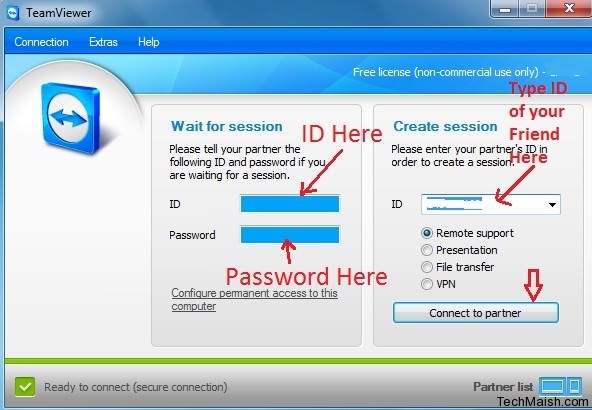 He can then access your computer.
Create Session
If you want to access your’s friend computer. Then ask him to provide his ID and Password. Enter the ID in Create Session box and click on “Connect to Partner” button. Immediately a new box will appear, where you will have to type the password. As you enter the password, you will see the computer screen of your friend. Now you can operate his/her computer from your PC.
Why Use Team Viewer?
1. Once it is installed the team viewer can generate automatically the username and password. This is based on the configuration of hardware of your system. This unique ID can be provided to a person to whom you want to allow for remote access of your system
2. Once you provide that specific ID to the other person who has internet connection and also has the team viewer software already installed on his system can access to your desk top screen
3. This will allow the person to share your desktop screen and view the screen
4. You can see a single screen or represent the other screen as a part of your screen
5. You can use the software to share and transfer files between the two systems
6. You can transfer file in both directions
7. By sharing the VPN you can have greater access by use of the team viewer software
You need not to worry about the security of the system as team viewer ID generation is done in a secured way and no other external person can gain access to it. Let me know if you have any problem during the installation or operating the software. Feel free to share your comments below.
 February 14, 2014
- July 6, 2010
Related Posts
Search Here
4 comments
louisa
what are the client system requirements for team viewer application??
Robert @ Techinfo-4u.com
This is a great little program, I regularly use it to help out people and troubleshoot things for my friend
Bilal Ahmad
Shah@ Yes for blogger it is really very useful.
Shah
Hi Bilal, this is a great software . i’ve been using it for more than a year already. highly recommended