
August 29, 2021
Automatically Forward All Mails From One Gmail Account to Another Gmail
 Logging in to multiple gmail accounts is always a hectic task. As every gmail account of yours might be associated with your important activities and you have to check all accounts for new incoming emails. It is quite time consuming to login and logout from each of your account. If you are like me then you probably will need a simple solution to save time and deal with this problem. I have found a super duper solution for this problem which allows you to automatically forward all your incoming emails from multiple accounts to your primary gmail account. It is basically merging all gmail accounts into one of your primary gmail account.
Suppose if you are using 5 gmail accounts and you want to receive all emails in one gmail account. Then you can forward all emails from gmail 1, gmail 2, gmail 3 and gmail 4 to your gmail 5 account. Then there is no need to login to all accounts, because you can receive all mails in your gmail 5 account. You can even replay to a incoming email from gmail 5 account on behalf of any of your other gmail account.
This method allows you to send and receive emails from one single email that is called “Primary” account. As the procedure is little technical and confusing, make sure to follow step-by-step as mentioned below. It is recommended to use different browsers to login to your both gmail accounts at a time. This will save you some time.
How to Automatically Forward Mails from One Gmail to Another Gmail Account
Step 1:- Login to your Primary Gmail account (Primary means where you want to receive mails from other gmail accounts.)
Step 2:- Click on “Setting” button located at the top right side of your account.
Step 3:- Select “Accounts” tab and then click on “Add another email address you own”.
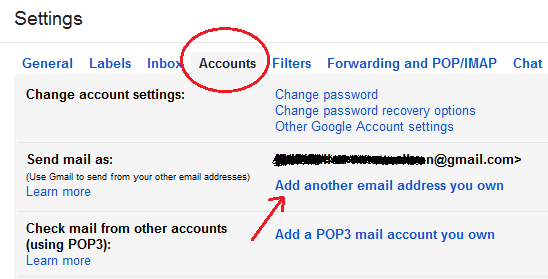
Step 4:- Now you will see another window. Where you will have to enter the email address of your 2nd gmail account.
Enter your 2nd emails address in the “Email Address” along with your “Name” in the respective fields and click on “Next Step” button.

Step 5:- After the 4th step, you will see another window, where you have to click on “Send Verification” button. Just click on the button to verify that the email address you entered is correct and owned by you. You can see in below image.
 Step 6:- Now you will see another box, where you have to enter the Verification code, sent to your 2nd gmail address. Login to your 2nd gmail and copy the code you received from gmail. Paste the code in box and click on “Verify” button. See the below image.
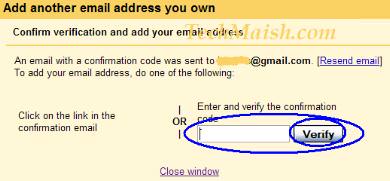 Step 7:- Now a new email address has been added and confirmed to your Primary gmail account. Similarly add all your other email addresses using the same method. Verify and confirm all the email address and now follow the steps below to forward mails from all the added email address to your Primary account.
Forward Mails from All Gmail Address to the Primary Address
(These steps are for Primary email address and are optional. This will help you to create Labels in your Primary email so that email coming from a specific account are stored inside a dedicated label.)
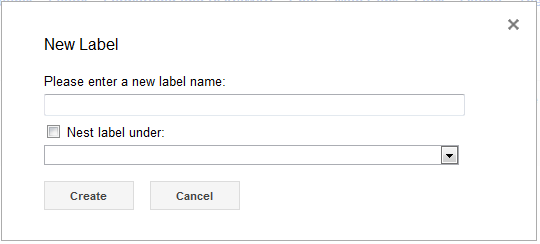
Step 8:- Click on the “Labels” tab inside the Settings. Scroll down and click on “Create new label” Write a name for your new label and click on ‘Create” button. (Note:- Name the label as your “2nd Gmail” OR whatever you want, but remember that all the emails you will receive from your 2nd gmail address, will be assigned to this Label. So make sure to add labels that you will later recognize. Although the email will still appear in your Inbox but organized in its own Label.)
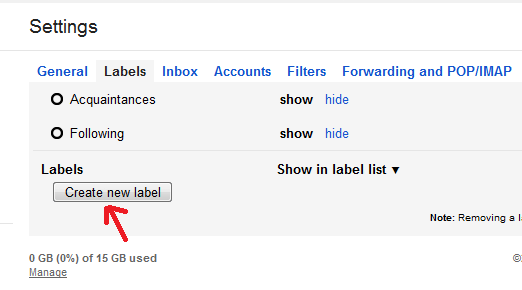
Note:- Create labels for all other gmail accounts that you want to add in your Primary account.
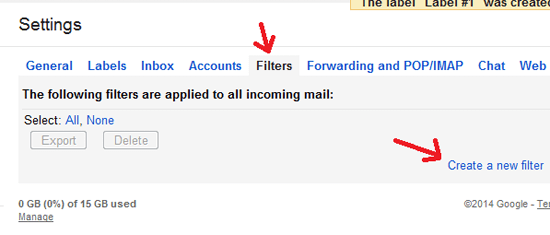
Step 9:- After creating “Labels” the next step is to create a new Filter. Click on “Filter” tab located near the “Labels” button in Settings.
Under “Filters” setting click on the button “Create a new Filter” and you will see another window.
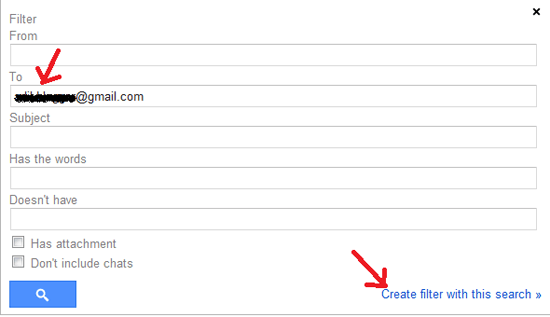
Enter your 2nd email address in the T0: box and click on “Create filter with this search” (See the screen shot below)
Step 10:- Now you will see another box, where you will have to assign the “Label” you created in step 8 to your 2nd email address. So that all the emails coming to your 2nd gmail account are assigned to this label.
Tick to “Apply the Label” button and select the Label to assign to your email address and click on “Create filter” button.
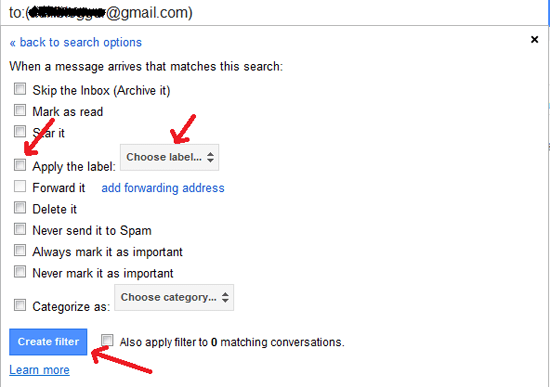
Now all the mails coming from your “2nd email address” will go to the label you selected. You can create filters for all other gmail accounts that you plan to add to your Primary Account.
The above settings were associated with your Primary account but now you need to login to your 2nd gmail account so that we can automatically forward all the emails to the Primary account.
Steps to Forward Emails from Other Gmail Accounts
Step 11:- Login to your 2nd gmail account.
Step 12:- Click on “Setting” and then click “Forwarding and POP/IMAP” tab. Click on “Add a forwarding address” and enter your Primary email address in the box.
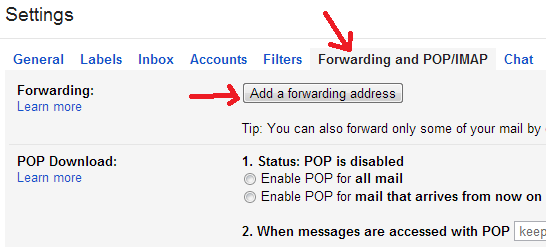
Enter your Primary Email address and click on “Next” button.
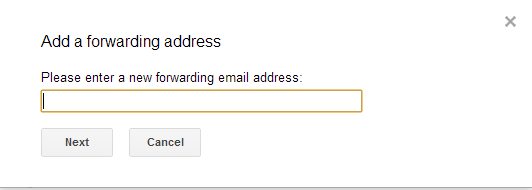
Now click on “Proceed” button to confirm the forwarding process.
Step 13:- A confirmation link will be sent to your Primary Email account. Login back to your Primary Gmail account and click on the Confirmation link to verify the forwarding process.
Step 14:- Once again you will need to login to your 2nd gmail account to tick the option “Forward a copy of incoming mail to” to your Primary email. This is the final step. Login to your 2nd gmail (secondary account) and go to “Forward POP/IMP” and tick the “Forward a copy of incoming mail to”, select your Primary account and click on “Save Changes” button.
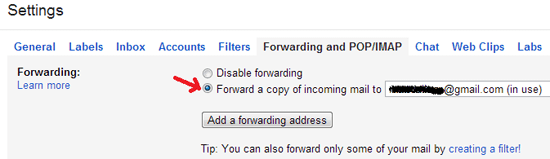
Now all incoming emails from your “2nd email address” will automatically be forwarded to your primary email address, and you will see all the mails assigned to the “Label” you created in step 8.
You can add as many emails as you own. Here is the summary of the process.
- Add your Secondary Emails to your Primary Email Account
- Create Labels
- Create Filters and assign them to the respective labels.
- Login to your Secondary Email account and add the Primary Email address for the forwarding.
Hope you have successfully implemented the process. Feel free to post comments below if you have any problem during the process.
You can read about how to detect invisible users on yahoo and other messengers.
Don’t forget to share your comments on this post “Automatically Forward Mails From One Gmail Account to Another Gmail.


 February 23, 2010




56 comments
elizabeth
Just curious..after I start forwarding mail into one acct…does it still show up in the other acct as well or once forwarded does it only show in primary acct
Bilal Ahmad
You have the option to leave copy on the secondary or to delete when it is forwarded.
Paul
Thanks for this tutorial. Worked great for me. Strange how much misinformation I came across before I landed here – many even omitted the steps for the primary account after setting up the secondary. And thanks also for keeping the procedure updated – don’t see that much these days.
Bilal Ahmad
Pual@ I am glade it worked for you.
bazi
can you dispaly any header
i want to know if the message received by the seconde mail have gmail on from mail
Or received the same header like the source mail
thanks in advance
Kathy G
Works great! Instructions were very precise and helpful. Thank you!
Bilal Ahmad
You are welcome Kathy G.
Bilal Ahmad
The post is now updated according to the Gmail new interface. Let me know if you found any difficulty in the process.
NeedsUpdated
This needs updating.. Desperately.
Fahad Sherwani
Thank you very much for this very useful tutorial..May God Bless You !!
lisa
I have all my mail forward from one email account to another. In my primary email I have filters set up. It still filters from my primary email account but doesnt filter when it forwards to my other email?? Does that make any sense at all…)
popiel
Excellent – thanks!
karunakar
Hii..How to get a another gmail account trash mails to my gmail account..
please send your answer to my gmail account..
Thank you.
yogesh verma
Thanks……it is realy very helpful.
LWG
I am among many people who are seeking a way to forward all the ALREADY RECEIVED and, for example, the full content of my SENT MAIL folder to another address. Is there any way at all to do this? I have been forwarding incoming email to another address, for local backup purposes, for some time. But I just discovered that the secondary address is not receiving the SENT mail that I originate from the GMail account. It only gets the incoming mail. One way might be to set up an automatic CC of every email I send from GMail, but I have yet to find out how to do that as well.
Madhav
Sir,
I followed the steps given by you for automatically fetching mails from one mail to other gmail. But please inform by doing the above steps, whether the ‘sent mails / trash mails’ from secondary mail will also get automatically transferred to the primary mail?
Mely Johnson
This is out of topic, but I have been looking for answers/solution to my a problem I have regarding my original gmail address that I have not been able to access to for more than 2 weeks now. I now created a new address, but I need to be able to open the old email address as I have some important documents saved in the drafts. Also, my blog just disappeared because I changed my username to the new one as I cannot sign in with my old username. Now I lost both my gmail address and my blogger account. Can you please help me recover them. thank you very much.
v
Here’s a scenario: Email is forwarded from secondary Gmail to primary Gmail. I reply from the primary Gmail account. However, the reply will only show in the Sent Mail of my primary Gmail. If I log into 2nd Gmail account, I have no record of what I sent, and no conversation thread. Is there a way of ensuring email threads stay within the Gmail account they relate to, even if they were replied to from the primary Gmail account?
Bilal Ahmad
The email will be only shown in Primary Email. As it is sent from Primary on behalf of Secondary Email.